



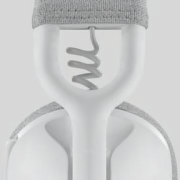
During Logi Work Deal Days, receive a free backpack when you spend over $225.

Limited edition drop. Coming soon.
Engineered for developer workflows. Built in strictly limited quantities. Be the first to unlock this limited edition drop

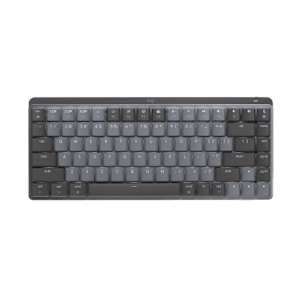
Shop MX Keypad & Save up to $100
Save up to $100 when you bundle the MX Keypad with select workspace products.


Free Pouch with Mobi Fold
Buy Mobi Fold and get a lightweight, compact travel pouch for free.

Shop MX Master 4 & Save On Your Ultimate Setup
Save up to $100 when you bundle the MX Master 4 with select workspace products.


Design for sustainability
Everything matters
When it comes to doing better for our planet, it’s on us. Every component. Every process. Every product.
LEARN ABOUT OUR COMMITMENT


Shop by product category




Reasons to buy from Logitech.com
We're all about making your shopping experience seamless. Shop direct and enjoy perks like free shipping, multiple payment options, easy returns, and access to exclusive offers only on logitech.com.

Buy now, pay later
Pay at your own pace with Klarna payment plans. Get what you love, choose how you pay.

Free shipping
Enjoy free standard shipping on all orders.

Students and Heroes get 20% Off
Students and Heroes can benefit from a 20% discount on Logitech products. It couldn’t be easier.

Money-back guarantee
Shop risk-free with our easy returns and 30-day money back guarantee.

24/7 customer service
We're here for you whenever you need. Reach us via chat, phone, or email for your convenience.

Exclusive offers
Unlock exclusive gifts when you purchase select products. Sign up for emails to stay up-to-date on offers.