About 10% of the global population is left-handed, yet most workspaces are built with a right-handed bias. Leading our Mice and Keyboard Solutions Team at Logitech, I see how physical setup choices directly influence daily wellbeing. A good chair or an adjustable monitor usually comes top of mind when people rethink their desk layout. Mice and keyboards are far too often an afterthought.
That needs to change. Matching your gear to your natural movement reduces physical strain and keeps you sharp throughout the workday. For International Left-Handers Day, here is a four-step checklist to find a mouse that actually fits your setup.
1. Decide between true left-handed or ambidextrous
Your first choice comes down to a dedicated left-handed mouse or an ambidextrous one. The former is shaped specifically for left-handed use, placing any side buttons within reach of your left thumb.
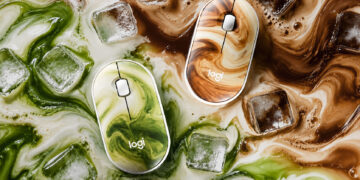
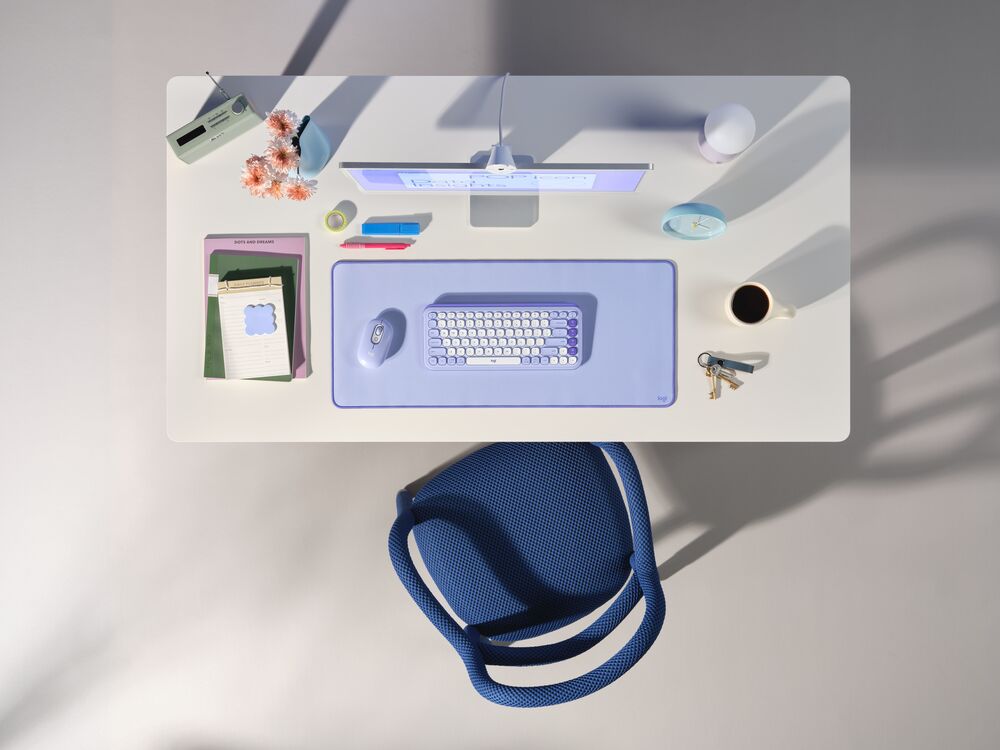
If you’re already used to navigating your devices right-handed, but want the option to swap to left, an ambidextrous mouse could be the route to take. These mice have a symmetrical design, like the POP Mouse, so you can choose whichever hand you’d like to use it in.
2. Match the shape to your hand size
Finding a mouse that is a good fit for your hand size keeps your forearm in a neutral posture and lowers strain. Pay attention to how your hand rests on the device:
- Your fingers should reach the buttons and scroll wheel comfortably
- Your thumb should reach any side buttons with ease
- Your pinky should not have to reach to hold the mouse; resting it on the table is OK
- The back of your palm should be supported when you’re resting it on the mouse
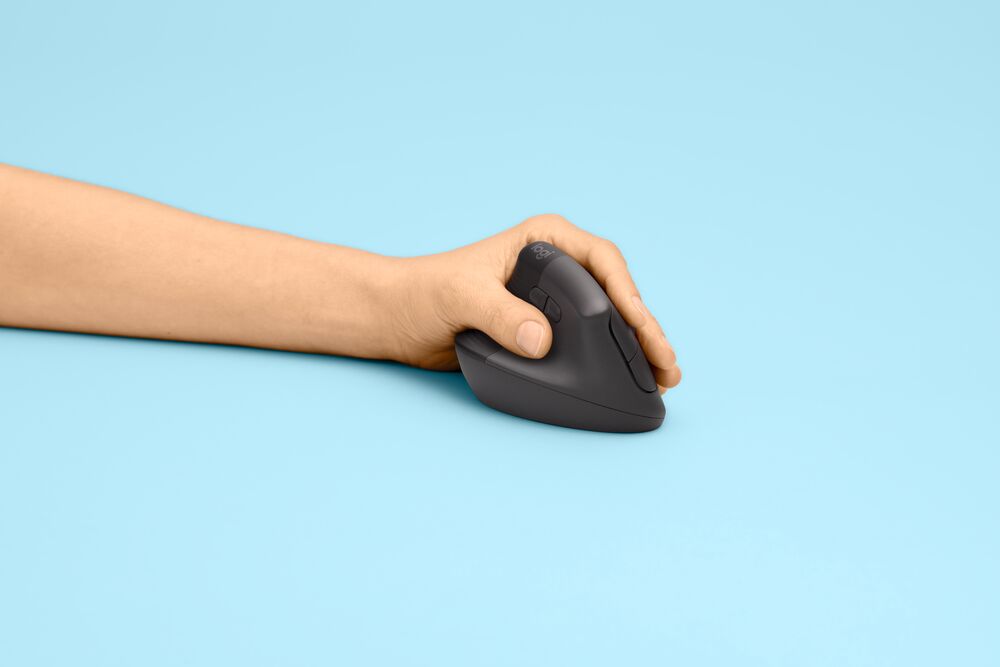
For the lefties with small or medium hands, Logitech Lift Left places your hand at a 57-degree angle to relieve wrist pressure and promote better posture throughout long desk sessions. For larger hands, the Signature M650 L Left features a roomier grip area with a contoured thumb rest for more comfort during extended work hours.
3. Figure out your mouse grip
There are three main ways people grip a mouse: fingertip, palm and claw.
A fingertip grip means only your fingers touch the device. Compact, lightweight mice excel here because you only need quick, micro-touches from your digits. A palm grip means both your palm and fingertips rest completely on the mouse, so a fuller, curvier shape is better to support your entire hand. For a claw grip, where your palm rests on the back of the mouse while your fingers arch over the buttons, look for a shape that gives your palm a stable place to rest.
4. Map your buttons
Hardware is only part of the equation. If you’re using an ambidextrous mouse, use software like Logi Options+ to swap primary and secondary clicks into left-handed mode.
If you opt for a dedicated left-handed design, customize your mouse to bring frequent shortcuts right to your fingertips. Map the side buttons to mute your microphone, execute copy-paste or trigger applications such as email to open with a single press.
What mouse setup are you running on your desk today?
About the author: Art is the General Manager of Logitech’s Mice & Keyboard Solutions (MKS) business unit within the Personal Work Solutions Global Business Group. Guided by a strong belief in designing a positive future, Art champions a vision where work equals wellbeing, technology is human-centered and innovation serves people, planet and business alike.