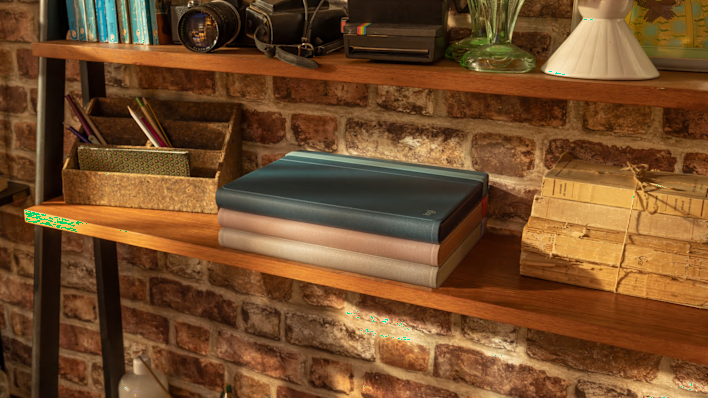
Set up your workplace to feel more like home

Set up your workplace to feel more like home

Everything you need to know to get started with Casa Pop-Up Desk in less than a minute.

Everything you need to know to get started with Casa Pop-Up Desk in less than a minute.

Want to know a little more about your new Pop-Up Desk?

Find out more below

Unpack your Casa Pop-Up Desk

Turn your Casa Book into a laptop stand in 5 simple steps.

  1. Start by removing the band and tucking it underneath. 
  2. Take out your keyboard and touchpad by pressing the bottom of each device to pop them out. 
  3. Then place your keyboard (Casa Keys) in front of you and your touchpad (Casa Touch) where you want. 
  4. Clip the top panel into the groove and it should be held in place with the built-in magnet.
  5. Finally, place your laptop on the stand. 

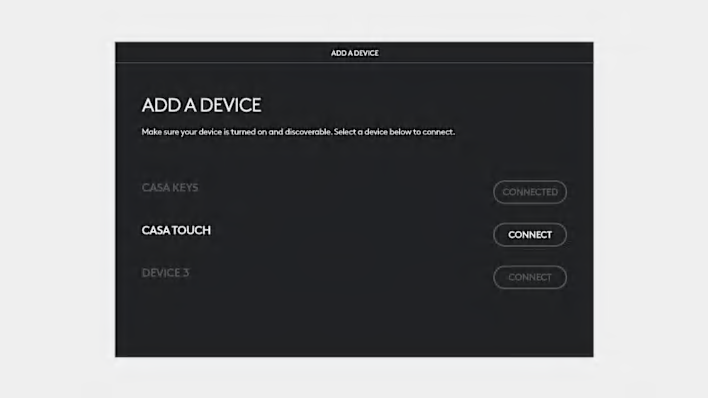
Now you’re ready to connect your keyboard and touchpad to your laptop.
Connect your devices with bluetooth

switch it on

Step 1

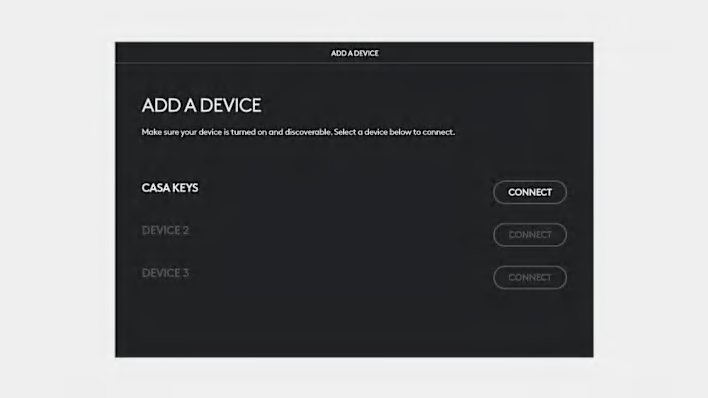
Let’s start by pairing the keyboard.

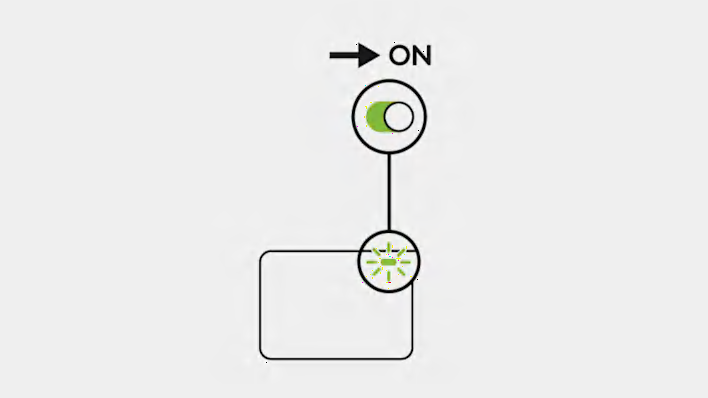
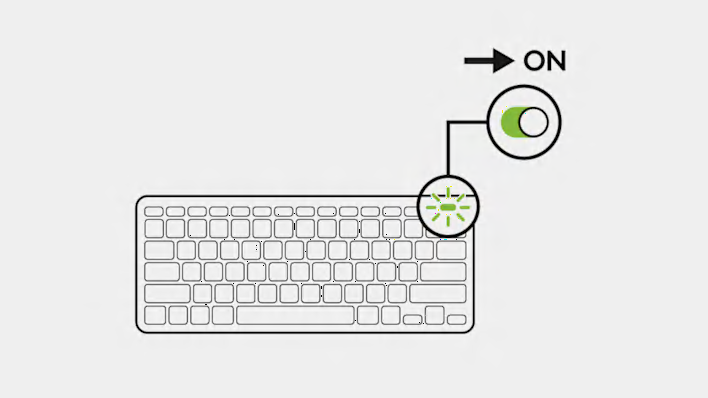
Make sure your device is ON.
 To turn Casa Keys ON, use the power switch, placed on the top right edge of the keyboard. The Power LED will light green when turned ON and then fade out.

easy switch technology

Step 2

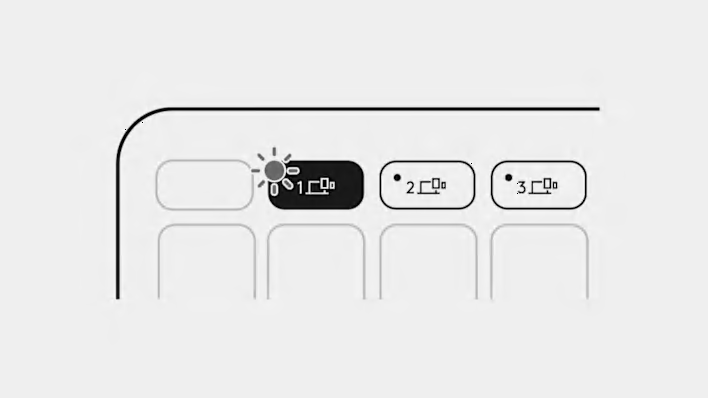
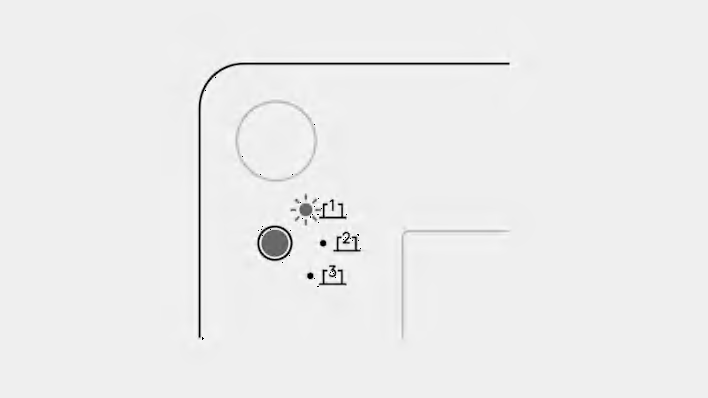
One of the Easy-Switch buttons’ LED lights should be blinking fast. If not, press and hold one of the Easy-Switch keys for 3 seconds. When the light begins blinking, the keyboard is ready to pair with your computer.

Learn more about your touchpad

Gesture controls let the touchpad turn specific hand movements into interactions with your computer. From clicking or scrolling up & down, to swiping between windows or apps.

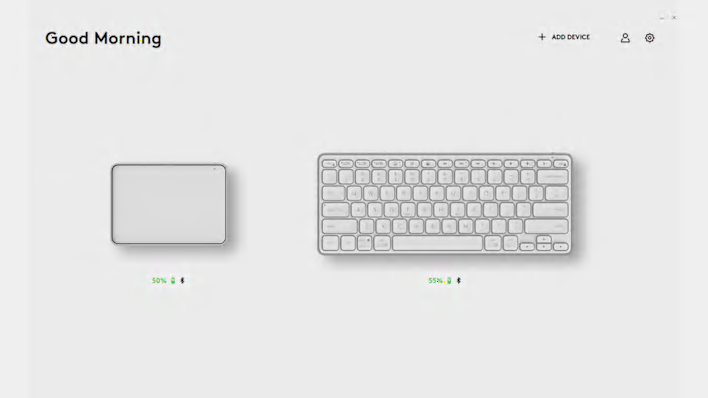
If you’re a Mac user, you need to download the Logi Options+ App to unlock some gestures that will feel familiar to what you are used to.

Select items

You can softly tap with one finger on the touchpad surface to select an item, or you can push down to click.

Scroll

Place two fingers on the touchpad and move them up, down, left, or right to scroll through content.

Find out what else your keyboard can do

emoji setting

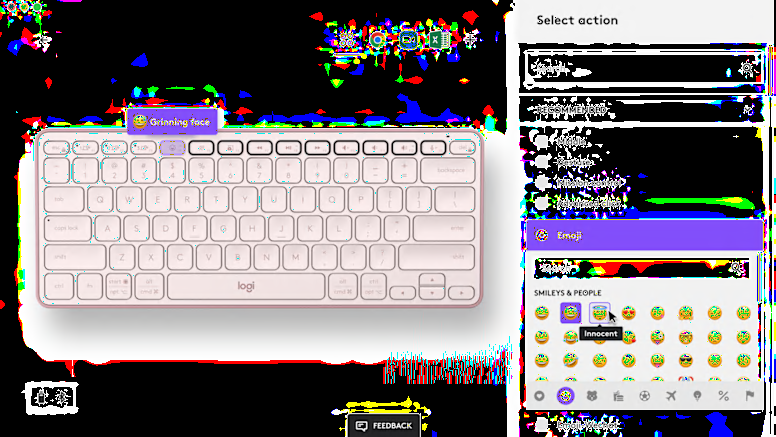
A minimalist form places all the keys you need at your fingertips, including Media Keys, Mic Mute/unmute, and Emoji. Working on Windows or macOS? Download the Logi Options+ App to discover customization options such as the emoji menu and create your own personalized Casa experience.

Create your workspace

how you sit

Be mindful of how you sit

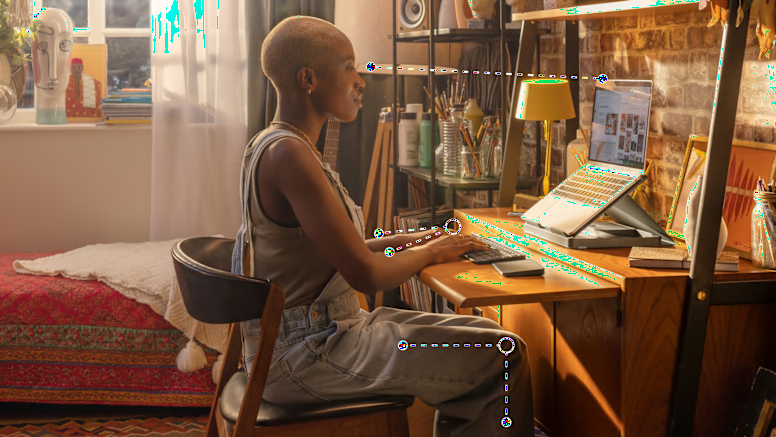
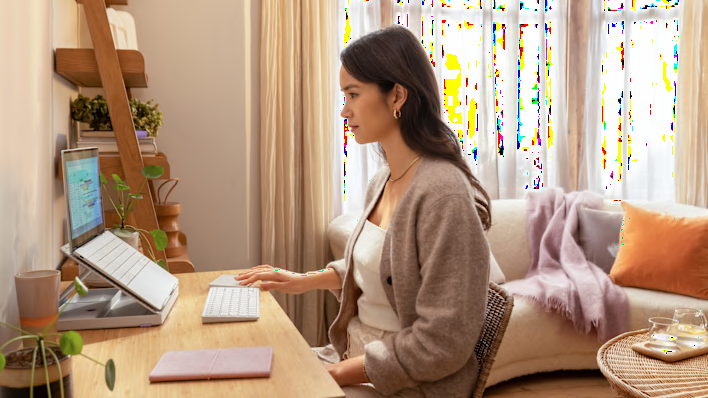
Place your knees at a right angle so your thighs are horizontal and your feet are flat on the floor. Align your elbows to table height so your shoulders/arms can relax.

Tip: You can prop up your chair with a cushion to help your arms rest comfortably on the surface you are working on.

comfortable distance

Set your screen at a comfortable distance

When your Casa book is turned into a stand, it helps align the top of your screen to eye level. Then place your laptop’s screen one arm’s length away (fist closed) to reduce tension in your neck.

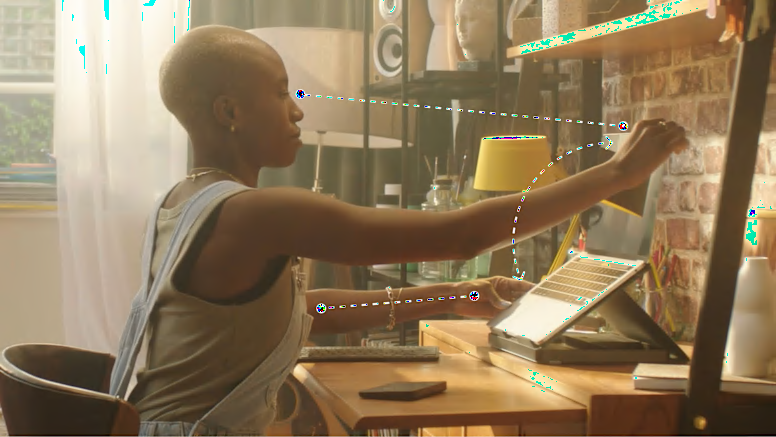
Tip: hold the laptop and stand with one hand while the other hand adjusts the laptop opening angle to have a vertical screen.

Some extra tips for a comfier day of work

start up bright

Start the day bright

Did you know that bright lights can help increase alertness, focus, and productivity? So if possible, find a sunlit corner of your home to work during the day and avoid bright lights in the evening so you can get a restful nights sleep.

take a break

Take a break or two

Feeling thirsty? Every time you need a refill, use that time for a little break to stand up and stretch. Disconnect for a little and go for a walk around the block to clear your mind and try opening your windows once in a while to lower the CO2 level of the room you’ve been working in.