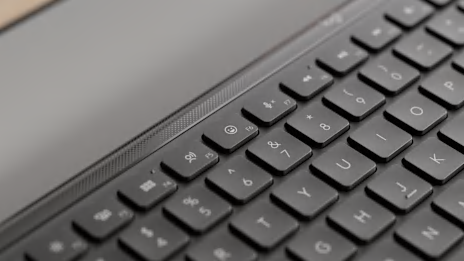
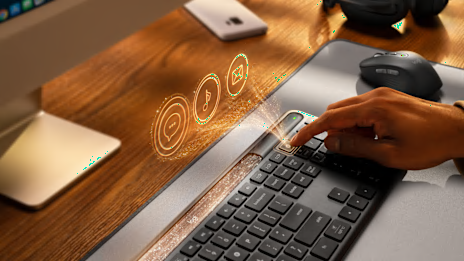
What Do F1–F12 Keys Do? | Logitech
Find out what the F1-F12 keys do on your keyboard, including F5 and its common uses for refreshing web pages and reloading content.
Logitech Firmware Update Guide for Devices | Logitech
Learn how to update your Logitech firmware, check versions, and keep your keyboards, mice, headsets, and cameras running smoothly with our simple guide.
Keyboard Shortcut for Print Screen | Logitech
Boost productivity with the keyboard shortcut for Print Screen and discover fast ways to capture your screen on Windows, macOS, and Logitech keyboards
Is a Keyboard an Input or Output Device? | Logitech
Find out whether a keyboard is an input or output device, how it works, and why it plays a key role in interacting with computers and other digital systems.
Keyboard Shortcut for Shutdown: Mac & Windows | Logitech
Learn how to power off or reboot your PC/Mac using only the keyboard: Shortcuts, command-line tips, and troubleshooting.
Tips for your Logitech ergonomic mouse | Logitech
Learn about simple ways to set up and use Logitech ergonomic mice and keyboards. Improve comfort, posture, and productivity every day.
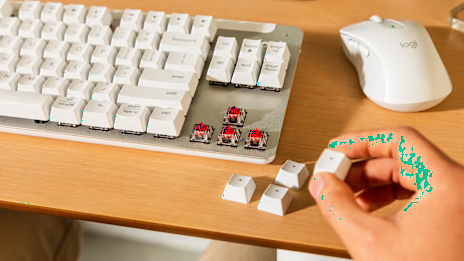
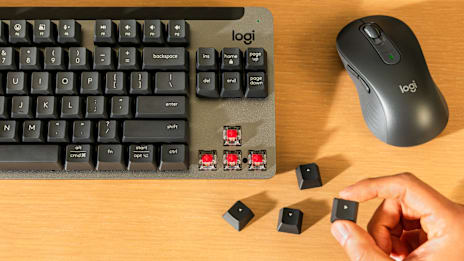
Keycap Replacement Guide | Logitech
Find out which keycaps fit your Logitech keyboard. Learn safe removal and insertion tips with this guide.
ANSI vs. ISO Keyboards: Which Layout to Choose | Logitech
Compare ANSI and ISO keyboard layouts, understand key differences, and discover which standard is best for typing, gaming, or programming. Learn more!
How to Remove Scroll Lock on Keyboard | Logitech
Learn how to turn off Scroll Lock, Num Lock, and other common keyboard locks. Quick fixes and tips to unlock your keyboard when keys stop responding.
How to Use and Lock the Fn Key on Your Keyboard | Logitech
Learn how to use, lock, or unlock the Fn key on your keyboard to access special functions like task view, screen capture, and media controls.
Keyboard Shortcuts for Switching Tabs | Logitech
Boost productivity with essential keyboard shortcuts for switching tabs, managing windows, and working faster on Windows, Mac, and popular browsers.
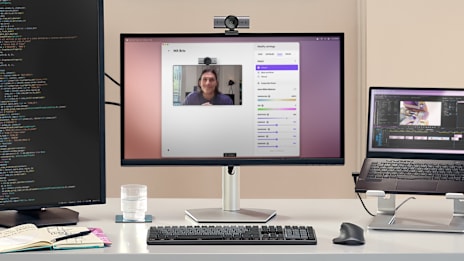
Optimize Logitech Webcam Settings | Logitech
Learn how to optimize Logitech’s webcam settings for sharper, brighter video. Adjust exposure, focus, and white balance with Logitech Capture software.
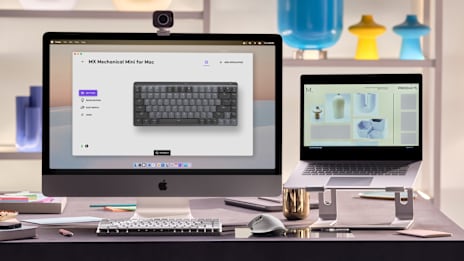
Logitech Options+ Download & Install Guide | Logitech
Download Logitech Options+ to customize keys, buttons, and gestures. Follow our step-by-step guide to install and remap your Logitech devices.
Logitech Flow Setup: Easy Multi-Computer Control | Logitech
Learn how to set up Logitech Flow, download the software, and use it to move your cursor, files, and clipboard seamlessly between multiple computers.
Mechanical vs. Membrane Keyboards | Logitech
Compare mechanical vs. membrane keyboards with Logitech. Learn key differences, pros and cons, and find the best model for gaming or everyday typing.
Mechanical vs. Analog Keyboards: Which to Choose? | Logitech
Compare mechanical and analog keyboards in this guide. Learn differences in sound, durability, customization, and find which keyboard suits your needs.
How to Pair A Bluetooth Keyboard | Logitech
Learn how to pair your Bluetooth keyboard to any device with easy steps for Windows, Mac, tablets, phones, and more with this simple step-by-step guide.
QuickSwitch Setup: Control Devices Across PCs | Logitech
Learn how to set up Logitech QuickSwitch to move your keyboard and mouse between multiple PCs seamlessly. Easy setup, pairing tips, and device switching.
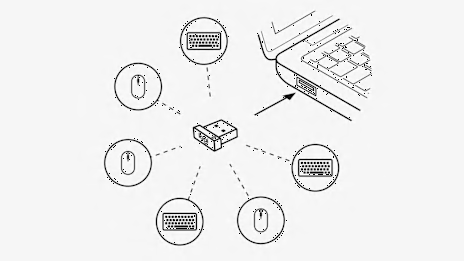
How to Set Up the Logitech Unifying Receiver | Logitech
Easily install and pair up to six Logitech devices with one Unifying Receiver USB dongle. Step-by-step guide for quick setup and use.
10 Tips for a More Sustainable Personal Workspace | Logitech
10 practical tips for a more sustainable workspace, reduce e-waste, recycle devices responsibly, and extend the lifespan of your Logitech accessories.
How to Clean Your Logitech Keyboard | Logitech
Learn how to clean your Logitech keyboard the safe way. Step-by-step keycap removal, cleaning solutions, and reassembly tips without voiding warranty.
Best Mechanical Keyboards for Work & Writing | Logitech
Find the best mechanical keyboards for students, professionals, writers, and everyday use. Compare features, comfort, and compatibility.
Logitech Battery Life & Power Saving Tips | Logitech
Find out how long Logitech batteries last, how to check battery levels, and easy ways to extend the battery life of your wireless mouse, keyboard, or headset.
How to connect your Webcam & Headphones | Logitech
Learn how to set up your Logitech webcam and connect your Bluetooth headphones to your PC or Mac. Follow our simple step-by-step guide.
Mouse Gestures Setup & Customization Guide | Logitech
Learn how to set up Logitech mouse gestures on Windows and macOS. Map custom gesture zones, create workflows, and boost navigation speed easily.
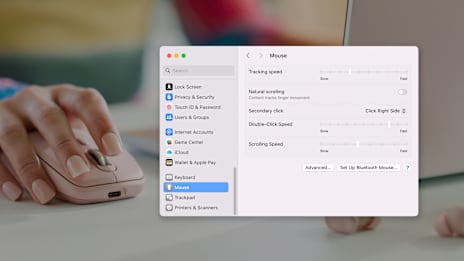
How to Change Mouse Sensitivity on Windows and Mac | Logitech
Learn how to change your mouse sensitivity in Windows, macOS, or gaming software. Improve cursor speed and precision with this quick step-by-step guide.
What Is Polling Rate on a Mouse | Logitech
Learn what polling rate on a mouse means, how it affects gaming performance, and how to adjust your mouse polling rate for smooth, responsive control.
How Microphones Work: Basics & Tips to Boost PC Audio | Logitech
Learn how different microphone types work, understand the signal path, and discover simple tweaks to maximize your PC's audio input quality.
Best Webcams for Home Office Use | Logitech
Find the best webcams for laptops, video calls, students, and remote work. Compare features, recording quality, and choose the right fit for your home office.
Best PC Gaming Headsets: Comfort & Sound Guide | Logitech G
Discover the best Logitech PC gaming headsets for 2025. Enjoy pro-level sound, comfort, and clarity with wireless and wired options built to win.
Cyber Monday: Best Budget Gaming Headsets | Logitech G
Find the best budget gaming headsets this Cyber Monday. Logitech G offers affordable wired and wireless options with clear audio and comfy design.
Best Gaming Headphones with a Mic | Logitech G
Discover the best Logitech G gaming headphones with a mic. Compare wired, wireless, and budget-friendly options for clear voice and immersive sound.
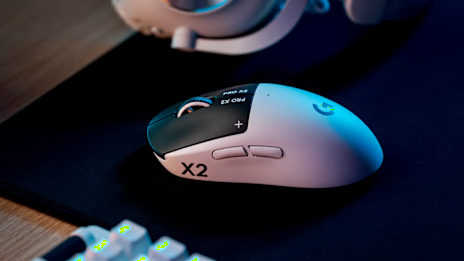
Best Wireless Gaming Mice | Logitech G
Find your perfect match: Logitech’s best wireless gaming mice for speed, control, and comfort.
College Gaming Setup: Best Affordable Headsets | Logitech G
Learn how to optimize your dorm for gaming, plus the top affordable headsets from Logitech G.
Best Xbox Headset Reviews: Top Picks for 2025 | Logitech G
Find the best Xbox headset for your play style, from wireless to budget-friendly to built for comfort.
Mini Keyboards for Gaming: Guide & Top Picks | Logitech G
Discover the best mini gaming keyboards from Logitech G. Compare 60%, 65%, and TKL layouts to find your ideal compact gaming setup.
Gaming Headsets Under $300: Gift Guide | Logitech G
Discover the best gaming headsets under $300 this holiday season. Shop Logitech G for premium sound and comfort at the right price.
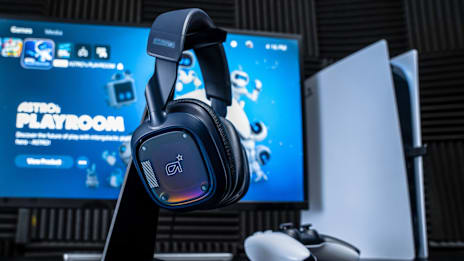
PlayStation Headset Basics: Models, Fit & Setup | Logitech G
Discover Playstation headset tips and top Logitech picks for comfort, sound, and easy setup.
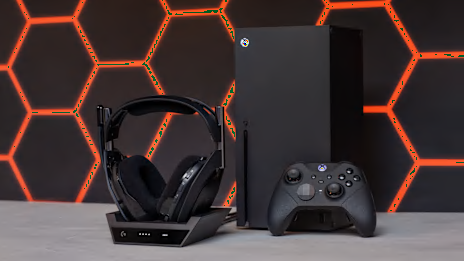
Wireless Xbox Headsets: Pairing, Features & Top Picks | Logitech G
Discover the best wireless Xbox headsets. Learn how to pair, compare top models, and upgrade your gaming audio experience with Logitech G.
Best Gaming Mice Shapes & Grips | Logitech G
Discover the best gaming mice for every grip style and playstyle. Learn how shape, weight, and performance affect your game.
Best PS5 Headsets: Specs, Comfort, & Value | Logitech G
Explore the best PS5 headsets to elevate your gaming experience. From wireless to wired options, find out which headset fits your needs.
Gaming Mouse Guide: DPI, Sensors & Buying Tips | Logitech G
Gaming mouse guide with tips on DPI, sensors, and features to enhance your gaming.
Gaming Accessories 101: X Must-Have Gear & Uses | Logitech G
Upgrade your setup with essential gaming accessories. Explore must-have gear and discover how each accessory enhances your gameplay.
Best Wireless Headsets for PS5 | Logitech G
Find the best wireless PS5 headset for comfort, immersion, or competitive play with our top picks.
Xbox Headset Guide: Features, Setup & Care | Logitech G
Your complete Xbox headset guide for 2025 with features, setup tips, comfort, and care advice.
Best Gaming Mice Under $200: Holiday Deals | Logitech G
Find the best gaming mice under $200 this holiday season. Explore top Logitech G models for precision, comfort, and value.
Good Gaming Headset Gifts for PC | Logitech G
Find the best PC gaming headset gifts this holiday season. Explore top Logitech G headsets for comfort, clarity, and immersive PC gameplay.
Wireless Xbox Headset Guide | Logitech G
Explore Xbox wireless headsets, how to use them, and which models deliver top performance.
Best PS4 headsets: Wired vs. Wireless | Logitech G
Find the best PS4 headsets from Logitech G. Compare wired and wireless options, find top picks with mics, and enhance your gaming experience.